Kyocera Printer to Computer: The Complete Guide to Wireless and USB Connections
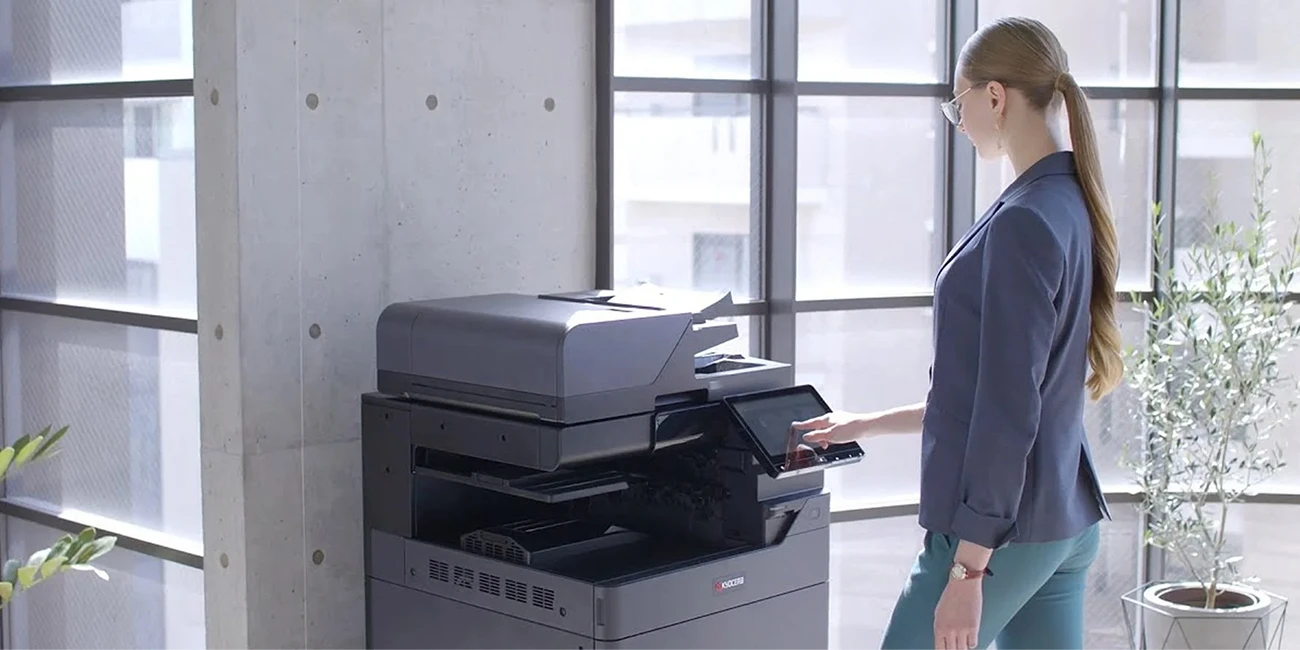
Kyocera printers are known for their strong dependability. However, how do they set up? At that point, things could get a little tricky, particularly for people who are jumping between USB and wireless connections.
This tutorial is your go-to source if you want to know how to connect a Kyocera printer to a wireless network or simply plug it in and print without any hassles. From opening your Kyocera to configuring it on a separate device, we walk you through every helpful step. We cover both wired and wireless setups, providing you with all the knowledge you need to manage the process, fix printer problems, and guarantee a fast, simple connection.
Understanding How Kyocera Printers Connect
Your Kyocera can link up in two main ways—via that trusty USB cable or over your Wi-Fi network. Which one’s better? That depends entirely on how you use it.
- Wireless connection: This is ideal if you’ve got several devices at home or in an office. It keeps your workspace cable-free, and, once it’s connected to Wi-Fi, everyone on the same network can print.
- USB connection: It’s the perfect choice for reliability. No signal drops, no guessing which network you’re on.
Before you start, check three simple things:
- The printer is powered on.
- Your Wi-Fi is running smoothly.
- You’ve got admin rights on your computer (for driver installation).
Simple prep, but skipping it is how most connection problems start.
How to Link a Wireless Network to a Kyocera Printer
You must first connect your printer to the network if you want to go wireless. It's quite simple:
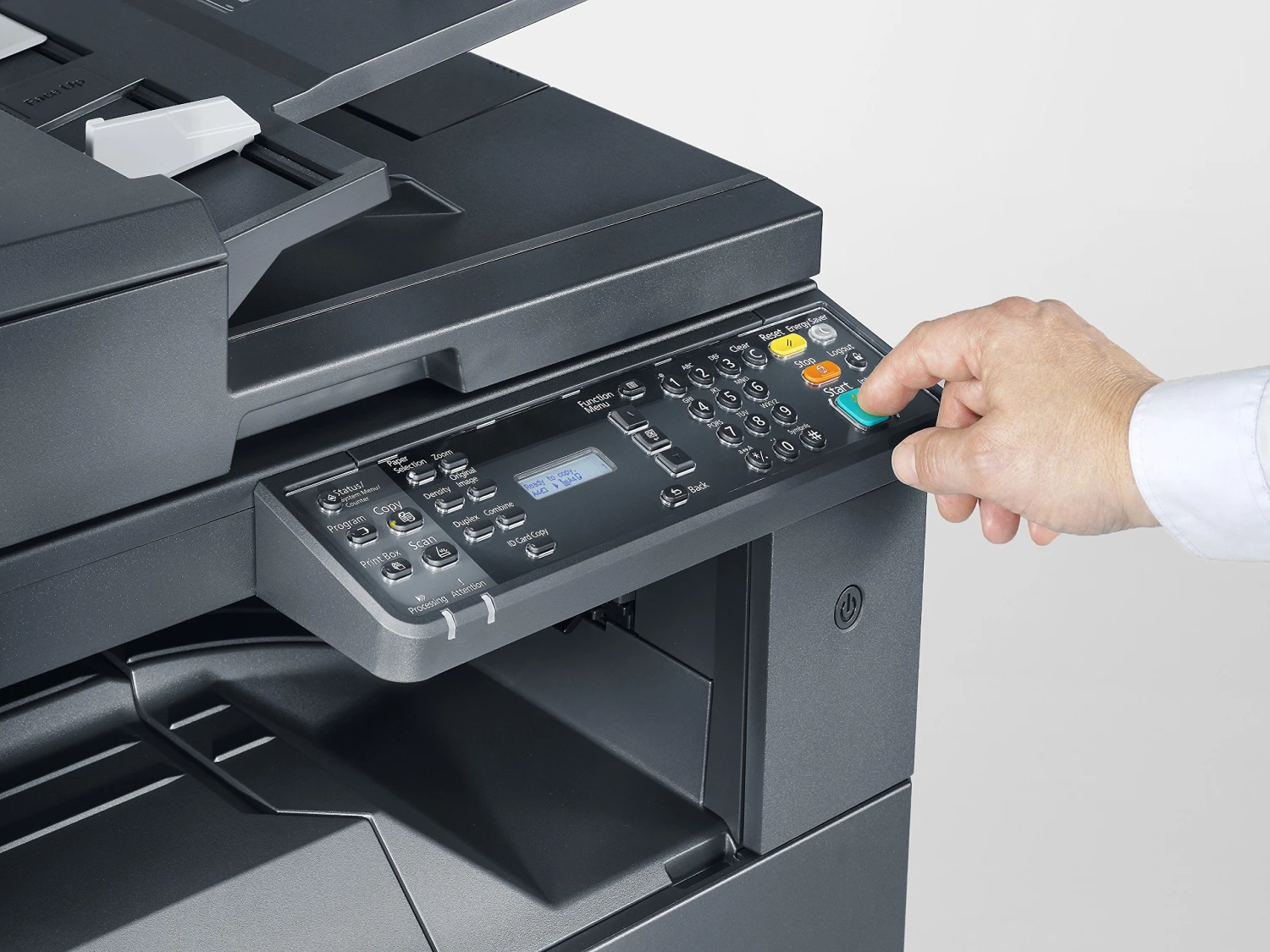
- On your Kyocera, select Menu or System Menu/Counter to access the printer menu.
- Locate the Network Settings by going to Network > Wi-Fi (WLAN) > Setup Wizard.
- Choose your Wi-Fi network: After the printer has scanned the area for signals, choose your own.
- Type in the password: Use the keypad to enter it, then click "Confirm."
- Await confirmation: After connecting, the printer ought to show a Wi-Fi icon or the message "Connected."
A brief aside: You may need to enter some information if your network has hidden SSIDs or complex security settings. The majority of Kyocera models are also compatible with WPS; simply click the router's WPS button and the printer's within two minutes.
Once connected, note the IP address of the printer. When you add it to your computer, you'll need it shortly.
How to Connect My Kyocera Printer to My Computer (Mac)
Macs usually make this easier, thanks to Apple’s system.
- Open System Preferences: Go to Apple Menu > System Preferences > Printers & Scanners.
- Add a printer: Click the little “+” icon under the printer list.
- Spot your Kyocera: If it’s on the same Wi-Fi, it should appear.
- Not listed: Click IP, enter the printer’s IP, and choose Line Printer Daemon (LPD).
- Select the correct driver: macOS might do it for you, but if not, download it from Kyocera’s site.
Once done, print a test page. You can even rename your printer—helpful if you’ve got more than one, like “Office Kyocera” and “Home Kyocera.”
How to Connect a Kyocera Printer to a Laptop
This part’s simple—it works the same way as a desktop. But laptops bring one small complication: networks change.
Here’s a quick checklist:
- Verify your laptop is on the same Wi-Fi network as the printer.
- Confirm the printer’s IP address and add it through Printers & Scanners (Windows or Mac).
- Install any required Kyocera drivers.
If you print from multiple places (say, office by day, home by night), your laptop might forget one printer when switching networks. The easy fix? Install the Kyocera Mobile Print app. It remembers multiple printers and lets you print directly from your phone or tablet, too.
How to Connect via USB: A Comprehensive Guide
Wi-Fi can act strangely at times. At that point, USB steps in to help.
- Connect the USB cord to the Kyocera printer and computer.
- Turn on the printer.
- Await its detection by your system. The majority will install the driver automatically. If not, download and manually install the appropriate driver from Kyocera's website.
- When it's ready, select Printers & Scanners and make it your default printer.
That's all. Additionally, USB configurations facilitate troubleshooting. At least you can completely rule out Wi-Fi if something is wrong.
Advice for Easy Wireless Printing
After the initial setup is finished, use the following advice to maintain a seamless workflow:
- Give the printer a static IP address to prevent it from "disappearing" when the network reboots.
- Update firmware to avoid random dropouts—it's not just for IT enthusiasts.
- Secure your Wi-Fi: To keep others from accessing your printer, use a strong password.
- Get the Kyocera Print Centre app here: It assists with queue management, toner monitoring, and troubleshooting directly from your computer or phone.
Quick-Fix Checklist for Common Printing Problems
Even the most basic setup can pose some issues. Here are some quick fixes in case your printer is not behaving properly:
- Printer not showing up: Restart the printer and router. Still gone? Re-enter Wi-Fi password via printer menu.
- Driver errors: Check that you're on the correct driver for your system. Windows 10 versus 11 matters a lot more than you'd think.
- Lands in queue: The jobs that are waiting in line- Restart computer and printer after the queue has been cleared.
- If your Wi-Fi printing is slow, you need to get closer to the router, or you should use USB or Ethernet.
You've gone through the list, and your Kyocera printer still has problems. It is most likely a problem with your network board or corrupted driver files, which would require more specialized care.
Final Thoughts: When to Call the Pros
Ultimately, connecting and maintaining your Kyocera printer isn’t complicated. But it indeed requires the right knowledge and a little patience.
However, if you’re still struggling, our professionals at Officeproducts.ae are ready to help. We provide dedicated Kyocera printer support, including complex network configuration and on-site repairs. Our team has seen every imaginable Kyocera “tantrum,” and we can deliver a complete, lasting fix and get your printer back online in a fraction of the time. Don’t wait too long—contact our team of Kyocera experts for immediate service.
Recent Posts
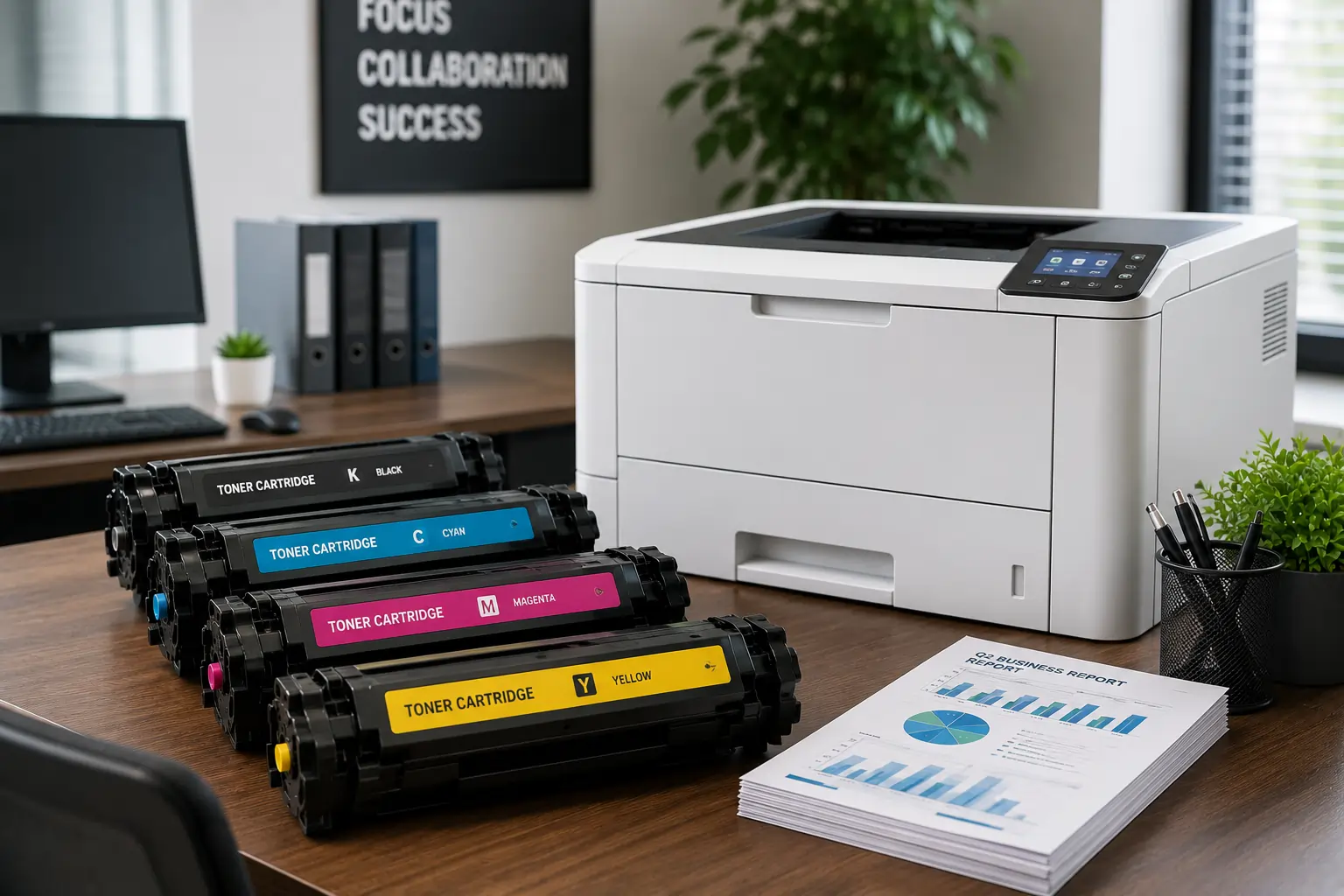
Why It is Important to Choose a Fast Toner Cartridge Supplier in the UAE
Important Printer Components that Every Entrepreneur Should Be Familiar With
Superior Offer:
Quick Installation
Minimal downtime, fast activation
24/7 Response
Always-on urgent support
AMC & Maintenance
Scheduled safety checks
Safety Solutions
Design • Install • Maintain

Superior Office Services: Your trusted partner for printer and photocopier rentals, sales, and comprehensive repair services in the UAE. We deliver premium end-to-end solutions with proactive maintenance.
Key Services
Printer Rental
Printer Repair
Office Products Support
Abu Dhabi, Dubai & India Offices
Mon - Sat 8.00am - 7.00 pm