How to Determine Printer Ink Levels
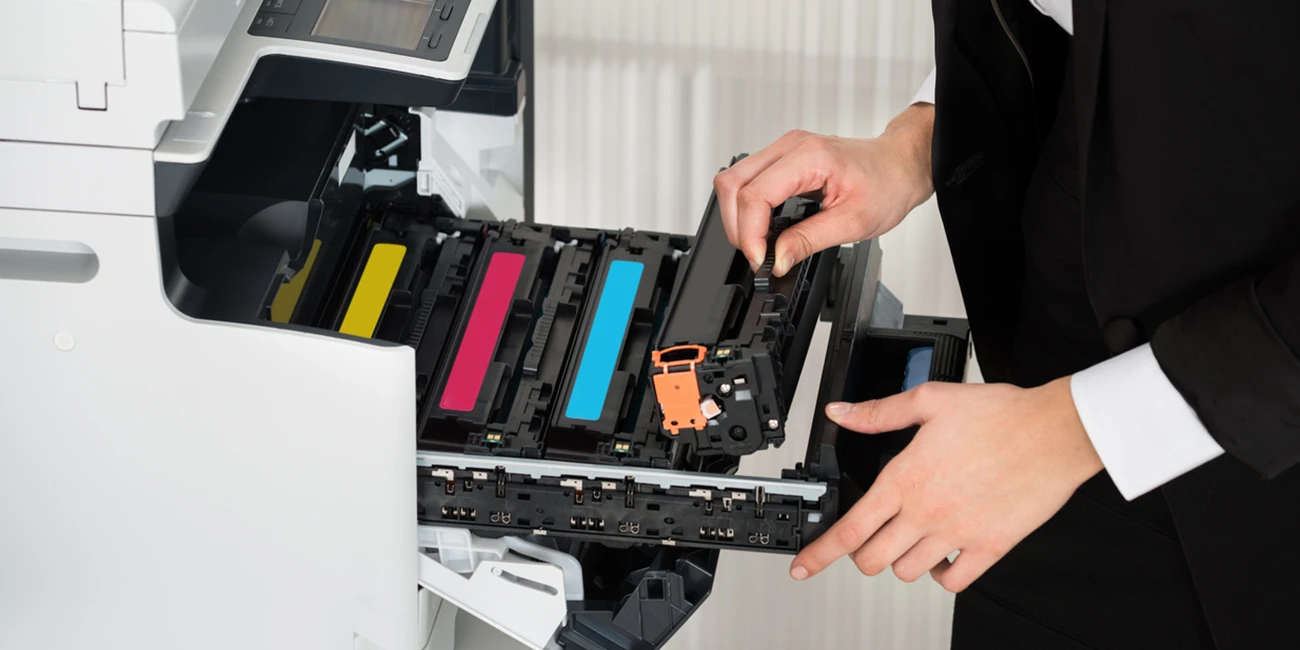
Does the printer in your office fail to print yellow? Do you encounter problems when printing from Windows 11? Or is the printer unable to print black? It is often suggested that a simple printer ink test is the answer to any printer problem. But how exactly can one perform this task? This is particularly important for offices that utilise machines such as Kyocera printers, Canon printers, and Brother printers, among others.
Why Checking Ink Levels Matters
Low ink can cause streaky or faded prints and colour inconsistencies. Worse, it can cause premature printhead wear and lead to major and costly printer problems.
So, it is vital to check your printer’s ink levels regularly. Treat this task as part of your routine printer maintenance to ensure your equipment’s optimal condition and avoid costly and sudden printer repairs. Now, let’s get into the guide.
How to Check Ink Levels on a Kyocera Printer
With the Instant Ink program, Kyocera has a clever trick up its sleeve. It keeps an eye on the ink levels in your printer and delivers fresh ink before your cartridge runs out. Therefore, if you sign up for this program, you might not even need to check your ink levels. But not everyone supports this initiative. Here's how to manually check ink levels if you're not a subscriber:
- Launch the Kyocera Smart app on your smartphone.
- At the top, choose the model of your printer.
- You may find your ink level indication by looking for the bar graph on the right.
Pro Tip: Update the firmware on your printer if you're not getting accurate readings. If it doesn't work, the troubleshooting guide for erroneous readings is provided below.
How to Check a Canon Printer's Ink Levels
Similar to Canon's Instant Ink program, Canon's Auto Replenishment Service provides you with fresh ink anytime your printer senses that its ink supply is low. However, Canon's method for displaying ink levels is really straightforward if you haven't registered. The drill is as follows:
- Launch the Canon Print application.
- At the bottom of the screen, select your printer.
- On the following screen, ink levels will be the main focus.
How to Check an Epson Printer's Ink Levels
Checking printer ink levels is still essential, but Epson's EcoTank series is revolutionising longer-lasting ink. Here's how:
- Open the Epson Smart Panel application.
- Select your printer at the top.
- For every colour, you'll get straightforward and useful bar graphs.
Pro Tip: EcoTanks are fantastic, but don't become complacent due to their size. Regularly check the ink levels because the system can be harmed by running entirely dry.
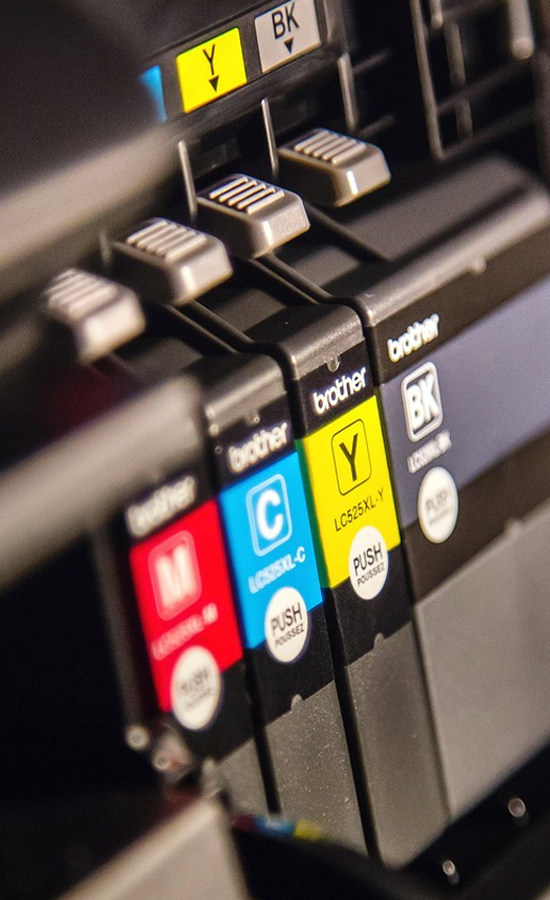
How to Check a Brother Printer's Ink Levels
In many UAE offices, Brother printers are frequently the preferred option. You must therefore be able to determine their ink levels. What to do is as follows:
- Launch the iPrint&Scan app from Brother.
- Select Supplies/Machine Settings.
- Your remaining ink or toner will be displayed in a bar graph.
Pro Tip: Although Brother printers are robust, damage can still occur to them. Even with high ink levels, fading prints could indicate that it's time for a thorough cleaning or assistance.
A Comprehensive Approach for the Tech-Aware
In this situation, and assuming you know your way around technology pretty well, this is how you can do it on most variations of
- Getting the IP address of your printer is important and can be obtained through
- In the web browser, type the given IP address.
- This will open the website interface for the printer, allowing you to monitor the printer status and ink level.
It is very helpful when you have network printers or when you do not need to install extra software or applications.
When to Call the Pros
Although checking ink levels will normally not be a problem, you might need professional assistance in the following instances:
- If the levels indicate that the ink is full, but the print quality is poor
- When you constantly receive error messages regarding the cartridges
- If the printer doesn’t recognise the new cartridges, you
In these situations, there may be some unseen problems that need a professional analysis.
How Do I Fix Incorrect Ink Levels for My Printer?
As discussed in the points above, you may occasionally experience problems with your printer's ink levels being inaccurate. This could be caused by a number of factors, including out-of-date firmware, broken chips in the ink cartridges, using third-party ink cartridges, or printer software problems. You can use this quick guide to fix your printer's ink level problems:
- Format/Reset the Printer: This step may help you reset the ink level sensor on your printer. Unplug the printer from the power source and switch it off. Wait for sixty seconds before turning the printer back on and plugging it into the power source.
- Update Printer Firmware: This is an issue that might cause the values you are reading to be unreliable. Consequently, if the reset process on the printer fails, you should proceed to the website of the manufacturer of the printer and obtain the latest update for the firmware of the printer that you are using.
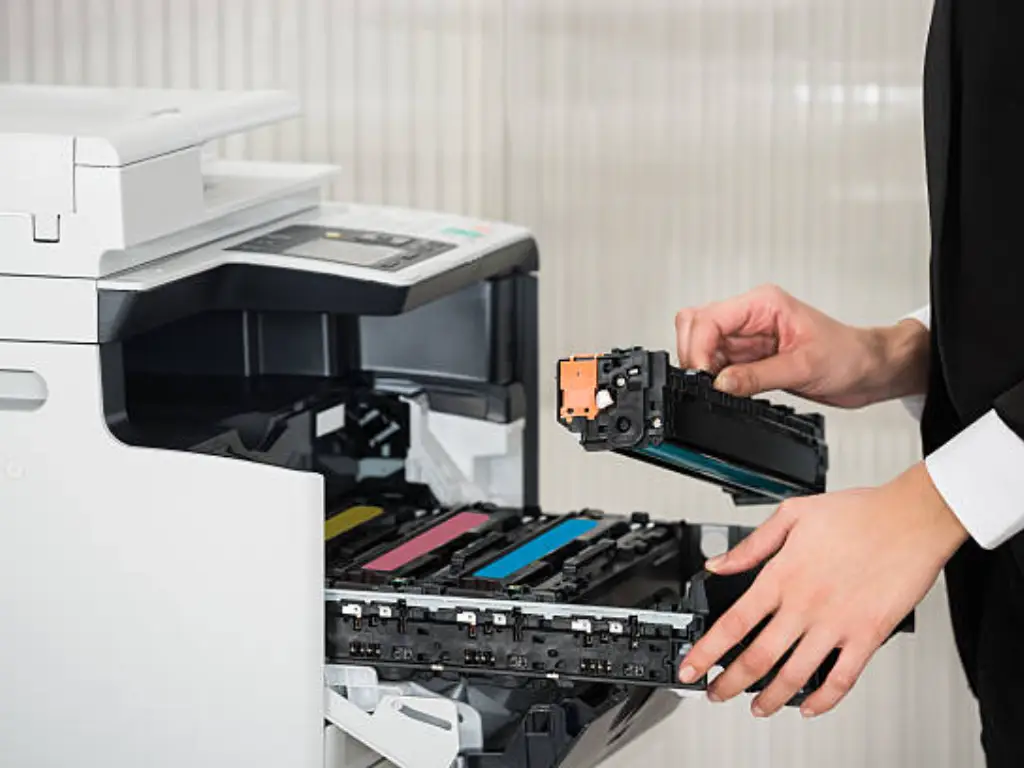
- Clean Cartridge Contacts: Dirty cartridge contacts may cause issues with the level sensor readings. Thus, when removing the cartridges, do so with care. Use a distilled water-dampened lint cloth to clean the contact surfaces on the cartridges, which are made of gold.
- Check Cartridge Compatibility: Remove the old cartridges to check their model numbers. Match those with your printer manual for compatibility. If any cartridges are not compatible with your printer, replace them with the proper ones.
- Conduct A Deep Clean: A deep clean may help unplug any clogs that may be causing issues with ink flow and level readings. This is quite easy, as all you need is to gain access to the “maintenance menu” on your printer. You can proceed to select the option that reads “Deep Clean” or “Power Clean", and depending on what is available on
- Manual Reset of Ink Levels: The reset of the ink levels can be achieved manually using some printers. All that is required is to navigate to the settings option of the printer. Afterwards, there will be a choice that reads ‘Reset Ink Levels’ or ‘Cartridge Reset’ to follow.
- Professional Check: And if nothing seems to be working, it may be high time for a professional check. Take this problem up with your printer manufacturer's helpline number. Or you can take it up with us. We will personally check your printer and do the repair job, if needed, on the same day.
Stay Proactive, Save Money
Checking your printer’s ink levels is a quick health check for your printer. It could save you when it matters most and also help you budget for when you actually need it. More importantly, it can help extend your printer’s life.
Have more questions on how to see printer ink levels? Are you bothered by your office printer’s poor performance? Don’t hesitate to book a service. Our trained technicians are ready to provide same-day printer repair & maintenance in the UAE.
Recent Posts
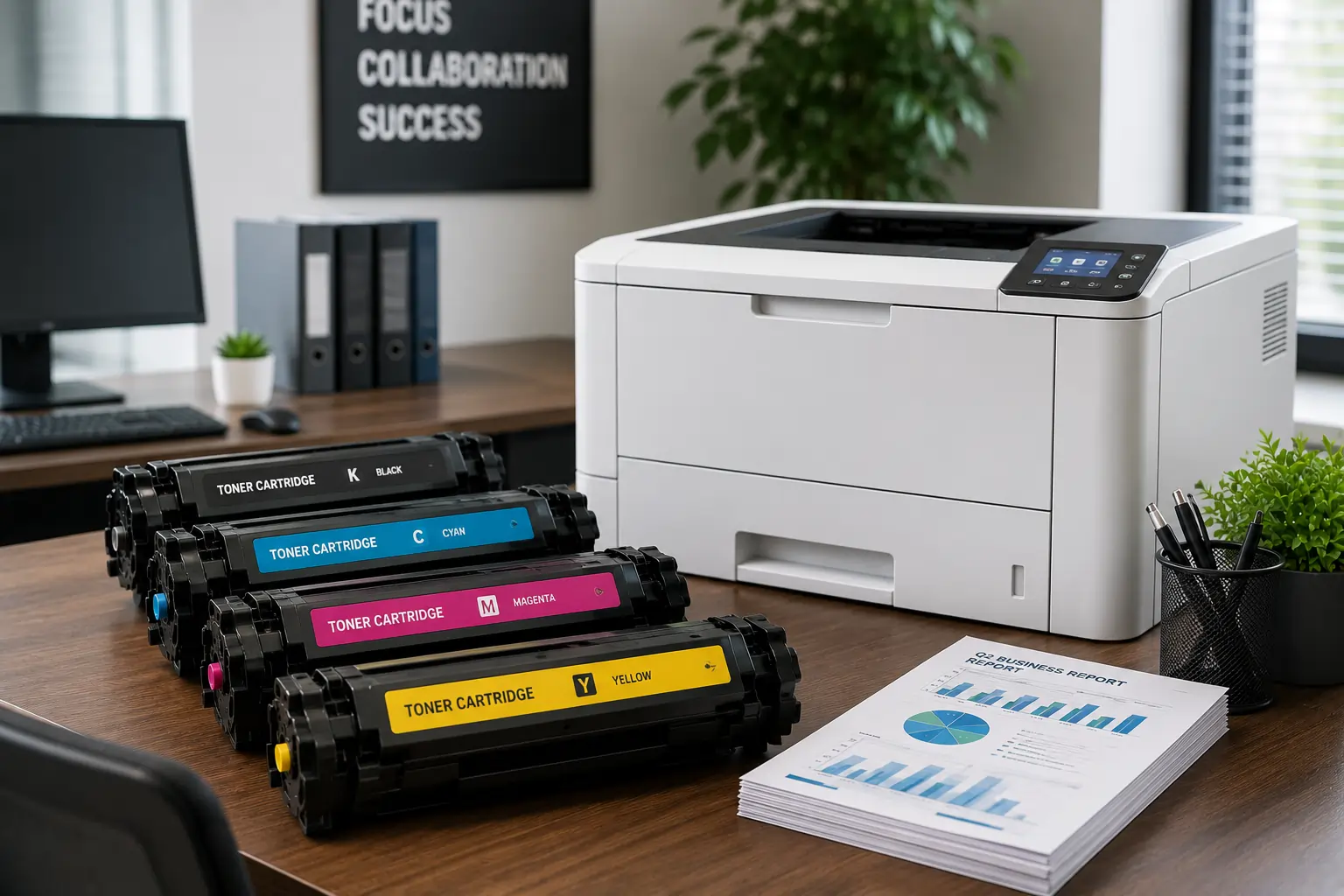
Why It is Important to Choose a Fast Toner Cartridge Supplier in the UAE
Important Printer Components that Every Entrepreneur Should Be Familiar With
Superior Offer:
Quick Installation
Minimal downtime, fast activation
24/7 Response
Always-on urgent support
AMC & Maintenance
Scheduled safety checks
Safety Solutions
Design • Install • Maintain

Superior Office Services: Your trusted partner for printer and photocopier rentals, sales, and comprehensive repair services in the UAE. We deliver premium end-to-end solutions with proactive maintenance.
Key Services
Printer Rental
Printer Repair
Office Products Support
Abu Dhabi, Dubai & India Offices
Mon - Sat 8.00am - 7.00 pm